Blind Line & College Ave
Orangeville, Ontario

Track down what's slowing your PC — Task Manager, startup programs, disk health, malware checks and more, step by step.

Are you experiencing a slow Windows PC? Don't worry! This guide walks you through diagnosing your slow computer, even if you're a new user. We'll assume you can boot into Windows, but everything is running slowly.
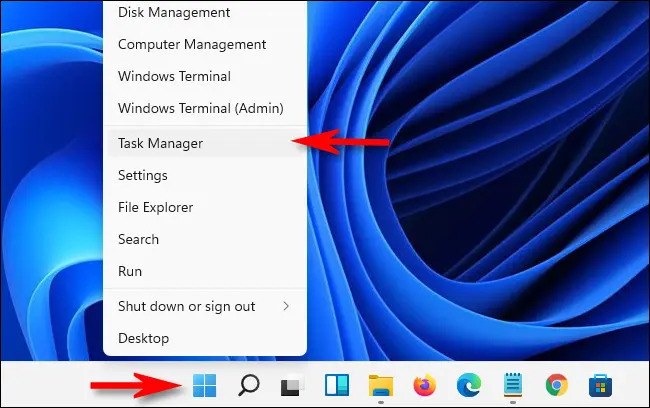
There are multiple ways to do this:
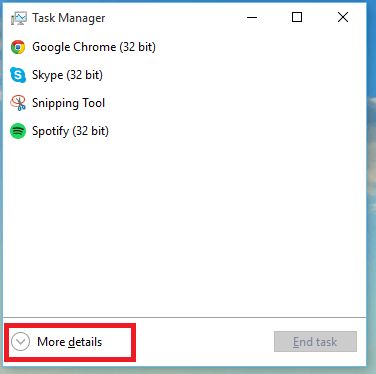
Once Task Manager opens you may see a simplified view. To access the full view, click "More details" in the bottom-left corner of the window.
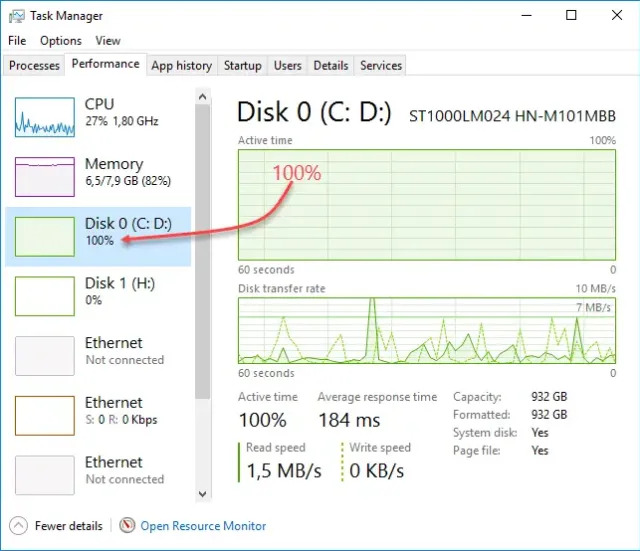
In the expanded Task Manager, select the "Performance" tab. Here you'll see your computer's components — CPU, memory (RAM), and disk. Check if any of these are at or near 100% utilization — that's usually the source of a slow PC.
First check the Processes tab (sorted by CPU) to see what is eating the CPU — a runaway app or background updater is a free fix. If the CPU is genuinely maxed out by normal use, it may be time for an upgrade. On a desktop, check whether a compatible CPU upgrade exists for your motherboard. On a laptop you might need to consider a newer model, as most laptop CPUs aren't upgradable.
If your RAM is at or near 100%, consider upgrading it. To find the maximum RAM your system supports, use a tool like Crucial's upgrade advisor or check your computer's manual using its model number. In the meantime, close browser tabs and startup apps you don't need — browsers are usually the biggest RAM consumers.
If your drive sits at 100% utilization, run a S.M.A.R.T. health check with CrystalDiskInfo or HD Tune. If the drive is failing, replace it — back up your data immediately. If you're still on a spinning hard drive, installing a solid-state drive (SSD) is the single biggest performance upgrade you can make to an older PC.
By following these steps you can identify the cause of your slow Windows PC and take the right action to fix it. If the disk is the culprit and it's an old MBR install, see our guide on converting MBR to GPT while you're modernizing.
Convert your disk from MBR to GPT with Microsoft's built-in mbr2gpt tool — no reinstall, no data loss — and switch to UEFI boot.
First-use setup, material tests and ramp tests to dial in your CO2 laser for clean cutting and engraving — plus essential safety tips.
Everything you need to build and configure your RetroPie emulation setup. Also suitable for Pi 1/2/4/Zero.
The full Wii softmod, start to finish: Wilbrand exploit → Homebrew Channel → BootMii NAND backup → Priiloader → cIOS → USB game loading.

Sign up and get notification about new services, promotions and sales.
